Samsung TV remote not working
A Samsung remote usually fails for a small reason: flat batteries, a solar panel that has not had light, a lost Bluetooth link or a blocked sensor. Work through these checks in order. If the remote cannot be saved, your phone can stand in over Wi‑Fi.
Which Samsung remote do you have?
The fix depends on the type, so look at yours first.
- A plain remote with lots of buttons: infrared only. It has to be pointed at the TV.
- A Samsung Smart Remote: few buttons and a microphone key. Most of its keys reach the TV over Bluetooth, so it has to be paired.
- A solar remote: a small solar panel on the back and a USB-C socket on the bottom edge. It has no AAA batteries to swap.
Checks to run first
- Power. Put fresh AAA batteries in a battery remote. For a solar remote, leave it panel-up in daylight or under a lamp, or plug a USB-C cable into the socket to charge it.
- The camera test. Point an infrared remote at your phone's front camera and press a button. A flicker of light on the screen means it is sending. A Smart Remote may show nothing even when it is healthy, because it uses Bluetooth for most keys.
- The sensor. The TV's receiver is on the lower edge of the screen. A soundbar, a stand or a sticker in the way can block it.
- Restart the TV. Unplug it from the wall for 30 seconds and plug it back in.
- Pair the Smart Remote again. The steps are in Samsung Smart Remote won't pair.
Use the buttons on the TV
Most Samsung TVs have a small control button, often a joystick, near the middle of the bottom edge or at the back near a corner. It varies by model, so feel along the frame. Press it to switch the TV on. On many models a press while the TV is on opens a small menu on the screen, and you move through it with the stick. That is enough to change input or open Settings.
Many Samsung smart TVs also accept a USB mouse or keyboard in the USB port. A mouse gives you a pointer and a keyboard gives you arrow keys and Enter. Support depends on the model, so treat this as worth a try.
Other ways to control the TV
- HDMI-CEC. Samsung calls it Anynet+ (HDMI-CEC), in the External Device Manager settings. When it is on, a games console or streaming box on HDMI can wake the TV and pass on basic controls.
- SmartThings. Samsung's own app can act as a remote. It asks you to sign in with a Samsung account and needs the TV on the same network as the phone.
- A universal remote. Choose Samsung in its set-up. It sends infrared, like the plain remote.
Where Tuned fits
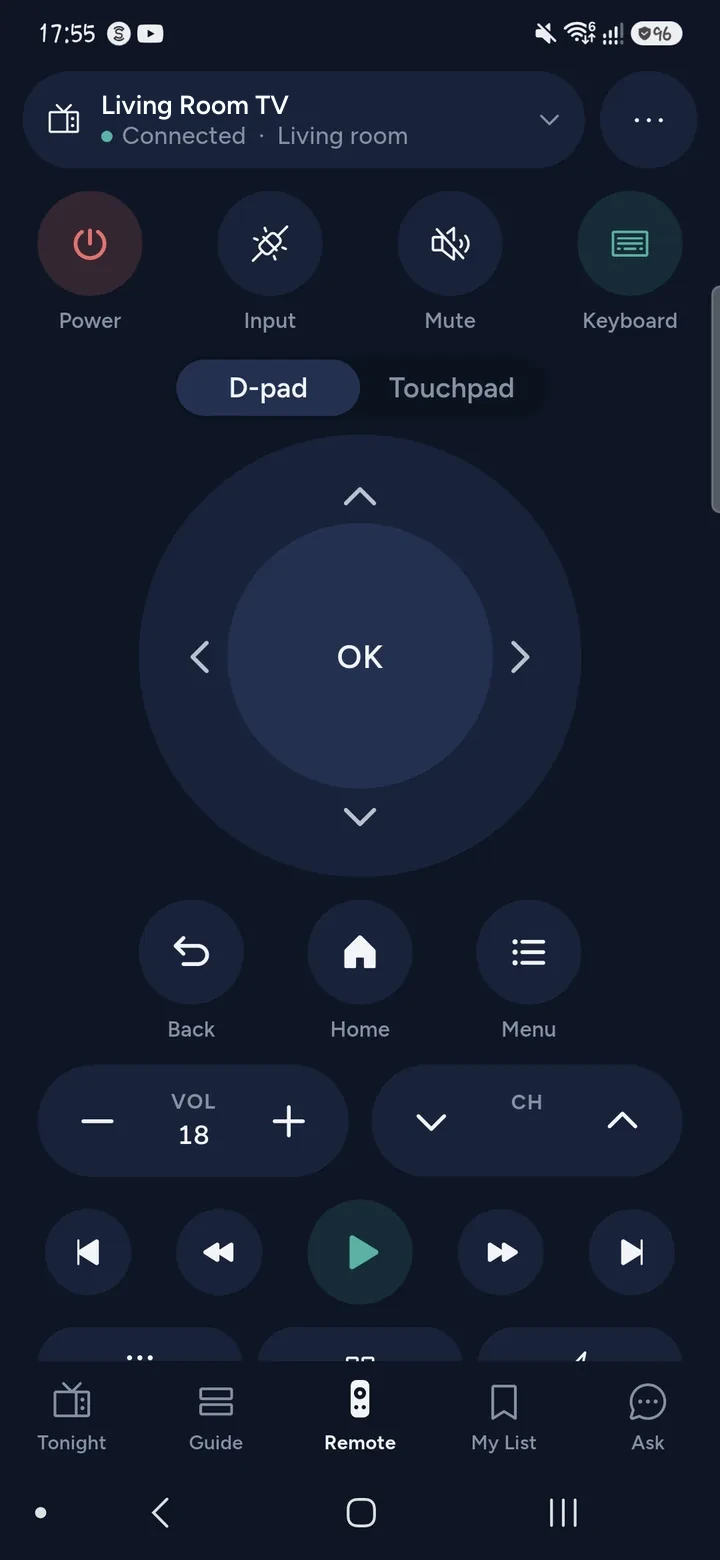
Tuned is a free remote for iPhone and Android that talks to a Samsung (Tizen) TV over your Wi‑Fi. It needs no Samsung account. Two limits are worth knowing:
- The TV has to be on, and on the same Wi‑Fi or wired network as your phone. Switch it on with the TV's own button first.
- The first time you send a key, the TV asks "Allow Tuned to connect?". You choose Allow with the TV's button or its joystick.
If the TV is not on your network at all, Tuned cannot help yet. See connecting a Samsung TV to Wi‑Fi without a remote.
Questions about a Samsung remote that has stopped working
How do I know if the remote or the TV is at fault?
If the control button on the TV works and the remote does nothing, the remote is the problem. If the camera test shows the remote flickering and the TV still ignores it, the TV's sensor may be blocked or faulty. If nothing on the TV responds at all, the TV needs a restart.
Can an iPhone replace a Samsung remote?
Yes, over Wi‑Fi. An iPhone has no infrared, so it cannot press the TV's IR sensor, but Tuned sends keys over the network and does the same job once the TV is on.
Do I need SmartThings to use Tuned?
No. Tuned pairs with the TV directly and never asks for a Samsung or SmartThings account.
Will Tuned work if my remote's buttons are only partly working?
Yes. It does not depend on the remote at all. Once the TV is on and the phone has been allowed, the remote screen on your phone sends every key.
Get Tuned
Free to download for iPhone and Android.